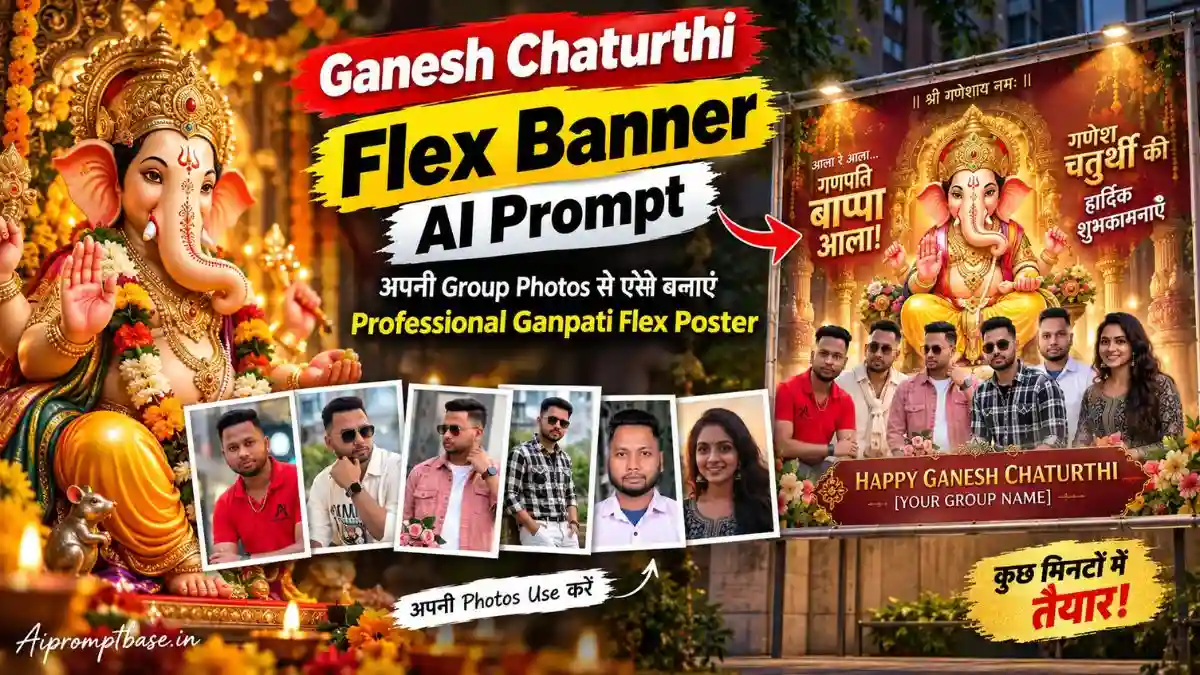
दोस्तों, अगर आप भी अपनी फोटो या अपने Group के Photos से Ganesh Chaturthi का Flex Poster बनाना चाहते हैं, लेकिन Photoshop चलाना नहीं आता या Designer से एक-एक Photo लगवाने का झंझट नहीं चाहिए, तो अब यही काम AI से काफी आसान हो गया है। असली Challenge Poster बनाना नहीं, बल्कि जितने Members की Photos दें उतने ही Frames बनें, किसी का Face न बदले और Final Flex सच में Professional लगे—यहीं ज्यादातर AI Posters गड़बड़ करते हैं।
इसी Problem को ध्यान में रखकर नीचे के Ganesh Chaturthi Flex Banner AI Prompt तैयार किए गए हैं। आप 4 Photos Upload करें या 9, Prompt का Focus Exact Photo Count, Face Lock और Auto-Adjust Layout पर रखा गया है। आगे तीन अलग Ganpati Flex Designs के साथ मैं आपको पूरा तरीका भी बताऊंगा—Photos कैसी रखें, Gemini/ChatGPT में Poster कैसे बनाएं और extra frames, duplicate faces या गलत Hindi Text जैसी Problems से कैसे बचें।
Group Photos से Ganpati Flex बनाते समय सबसे जरूरी Rule
दोस्तों, Ganesh Chaturthi Poster Editing Prompt में Design खूबसूरत बन जाना काफी नहीं है। असली Problem तब आती है जब आप 6 Photos Upload करें और AI Poster में 7 Faces, Duplicate Member या Extra Empty Frame बना दे।
इसीलिए इन Prompts में एक Rule सबसे ऊपर रखा गया है—जितनी Photos Upload हों, उतने ही Frames और उतने ही लोग Poster में दिखें। इसके बाद Ganesh Chaturthi Flex Banner AI Prompt Photo Count के हिसाब से Frames का Size, Spacing और Rows खुद Adjust करता है। इससे 4 Photos हों या 9, Flex किसी Fixed Template की जगह उसी Group के लिए बनाया हुआ ज्यादा Professional लगता है।
1. Ganesh Chaturthi Flex Banner AI Prompt – Ganesha Left & Group Photo Layout
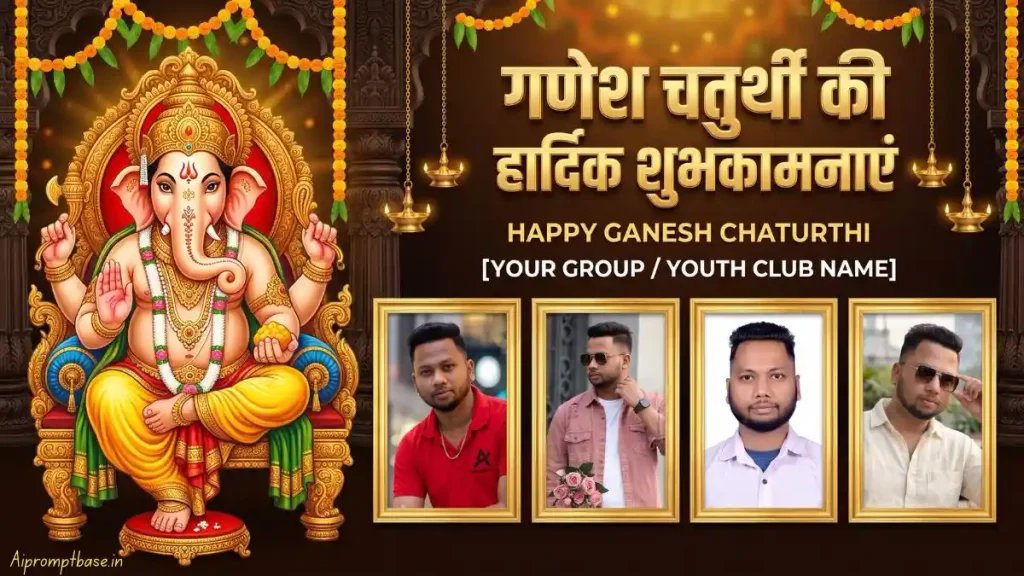
पहला Ganesh Chaturthi Banner AI Prompt उस classic Flex Style के लिए है जिसमें Ganpati Bappa Left Side पर और Group Members Center/Right में दिखाई देते हैं। इस Design में मुझे सबसे काम की चीज Auto-Adjust Frame Layout लगती है, क्योंकि Members बढ़ने पर भी Poster को fixed grid में रखने की जरूरत नहीं पड़ती।
Use the uploaded Ganesh Chaturthi banner as the DESIGN REFERENCE and all separately uploaded portrait photos as ORIGINAL SOURCE PHOTOS. Create a premium, professional HORIZONTAL Ganesh Chaturthi flex/banner in a wide 16:9 format, inspired by the reference image. Keep the luxurious dark-brown temple background, carved pillars, mango-leaf toran, orange-yellow marigold garlands, hanging brass lamps, warm golden lighting and a grand traditional Lord Ganesha on the LEFT side. STRICT PHOTO COUNT RULE: First COUNT all uploaded human portrait photos. Create EXACTLY ONE golden portrait frame for EACH uploaded photo. 4 uploaded photos = exactly 4 frames and 4 people. 6 uploaded photos = exactly 6 frames and 6 people. 9 uploaded photos = exactly 9 frames and 9 people. Never add extra people, duplicate photos, omit a person or create empty frames. The number of portrait frames MUST always equal the number of uploaded portrait photos. AUTO-ADJUST FRAME LAYOUT: Automatically resize and arrange the golden frames according to the number of uploaded photos. For fewer photos, use larger evenly spaced frames in one centered horizontal row. For more photos, use two balanced symmetrical rows if needed. Center the shorter row and maintain equal spacing. The layout must look professionally designed specifically for that exact number of people, not like a fixed template. STRICT FACE/IDENTITY LOCK — HIGHEST PRIORITY: Use each ORIGINAL uploaded portrait photo directly inside its frame, like inserting a photo into a Canva/Photoshop frame. DO NOT generate or recreate a similar-looking face. Preserve the EXACT original face, facial structure, eyes, eyebrows, nose, lips, jawline, skin tone, hairstyle, hairline, beard/moustache, age, expression and natural facial proportions. No face swap, beautification, reshaping, skin smoothing, hairstyle change or AI reinterpretation. Only crop, proportionally resize, reposition and make very minor brightness/color adjustments if necessary. NEVER modify facial identity. Face accuracy is more important than visual enhancement. TEXT: At the top center/right add large premium metallic-gold 3D Hindi text: “गणेश चतुर्थी की हार्दिक शुभकामनाएं” Below it add: “HAPPY GANESH CHATURTHI” Then add: “[YOUR GROUP / YOUTH CLUB NAME]” Keep all text clean, correctly spelled, centered and highly readable with elegant gold embossing, subtle glow and shadow. FINAL COMPOSITION: Lord Ganesha on the left, greeting at the upper center/right, uploaded portraits professionally arranged in ornate golden frames across the center/lower area, with temple decorations around them. No extra people, no duplicate portraits, no empty frames, no invented faces, no changed faces, no random text, no watermark, no clutter. Final result: ultra-high-resolution, print-ready, premium Indian Ganesh Chaturthi horizontal flex banner with professional studio-quality composition. MOST IMPORTANT: Uploaded portrait count = EXACT frame count, and every uploaded person’s ORIGINAL FACE must remain unchanged and clearly recognizable.
2. Ganpati Bappa Poster AI Prompt – Royal Mandap Group Flex Design
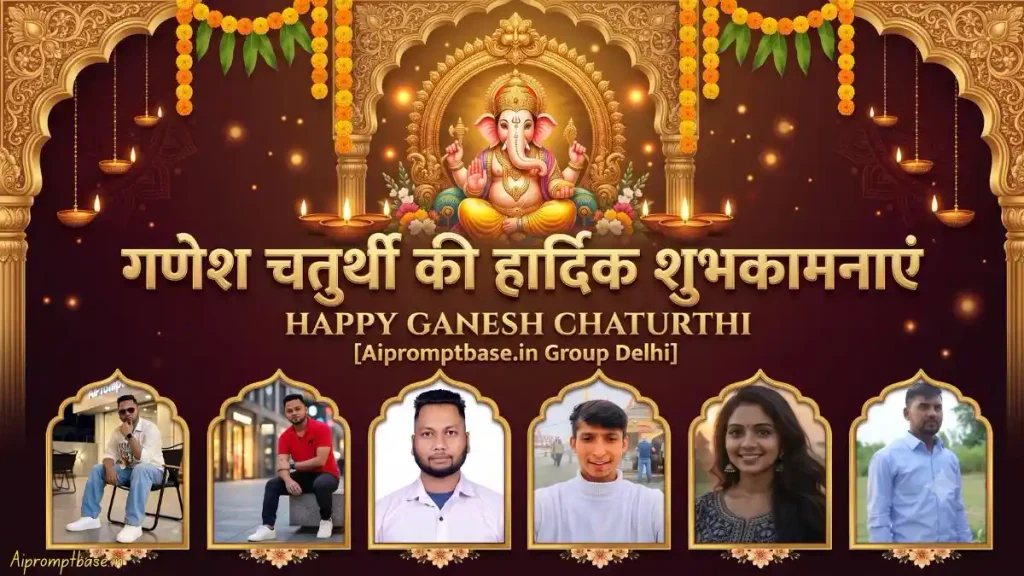
अगर normal Flex से थोड़ा ज्यादा Premium Look चाहिए तो दूसरा Ganpati Bappa Poster AI Prompt बेहतर fit बैठता है। इसमें Bappa Center-Top और Members नीचे Royal Arch Frames में आते हैं, इसलिए खासकर Youth Club, Group या Community Greeting Banner के लिए पूरा Poster ज्यादा balanced दिखाई देता है।
Use the uploaded portrait photos as STRICT ORIGINAL IDENTITY REFERENCES and create a completely NEW, premium HORIZONTAL 16:9 Ganesh Chaturthi celebration flex banner. UNIQUE DESIGN: Create an elegant royal festival-mandap theme with a deep maroon-to-dark-brown luxurious background, subtle Indian ornamental patterns, grand golden arches, warm diya lighting, marigold flower strings, mango leaves and soft glowing particles. Place a magnificent traditional Lord Ganesha in the CENTER-TOP inside a large decorative golden mandap/arch, surrounded by warm divine lighting and tasteful floral decorations. Keep the overall design luxurious, clean and realistic — like a professionally designed premium Indian festival flex, NOT a generic template. Add the main greeting prominently around/below the Ganesha section: “गणेश चतुर्थी की हार्दिक शुभकामनाएं” Below it: “HAPPY GANESH CHATURTHI” Then: “[Aipromptbase.in Group Delhi]” Use elegant embossed metallic-gold 3D typography with subtle glow, depth and shadow. Keep every word clear and correctly spelled. AUTO PHOTO COUNT: First COUNT the uploaded human portrait photos and create EXACTLY ONE portrait frame for EACH uploaded photo. 4 photos = 4 frames, 6 photos = 6 frames, 9 photos = 9 frames. Never add extra people, duplicate photos, omit photos or create empty frames. Automatically arrange the portraits across the LOWER HALF of the banner in a premium symmetrical layout. With fewer photos, use larger evenly spaced frames in one horizontal row. With more photos, automatically use two balanced rows. Center the shorter row and adjust frame size and spacing so the poster always looks intentionally designed for that exact number of members. Use stylish ROYAL ARCH-SHAPED GOLDEN PORTRAIT FRAMES instead of ordinary rectangular frames. Add subtle floral detailing beneath each frame for a distinctive premium look. STRICT FACE LOCK — HIGHEST PRIORITY: Use each ORIGINAL uploaded portrait photograph directly inside its frame like inserting a real photo into a Canva/Photoshop frame. DO NOT regenerate, redraw, beautify or reinterpret the person’s face. Preserve the EXACT original face, facial structure, eyes, eyebrows, nose, lips, jawline, skin tone, hairstyle, hairline, beard/moustache, age and natural facial proportions. Only crop, proportionally resize and make very minor lighting adjustments. NEVER alter facial identity. No AI replacement faces, no face swap, no extra people, no duplicate portraits, no empty frames, no random text, no watermark and no clutter. FINAL LOOK: Premium royal Ganesh Chaturthi community flex banner, luxurious maroon + antique-gold theme, grand central Ganesha mandap, beautiful festive lighting, perfectly balanced member portraits, realistic ornamental detailing, ultra-high-resolution and professional print-ready quality. MOST IMPORTANT: Uploaded portrait count = EXACT frame count. Every uploaded person’s ORIGINAL FACE must remain unchanged and clearly recognizable.
3. Ganesh Chaturthi AI Poster Prompt – Exact Photo Count Royal Ganpati Flex
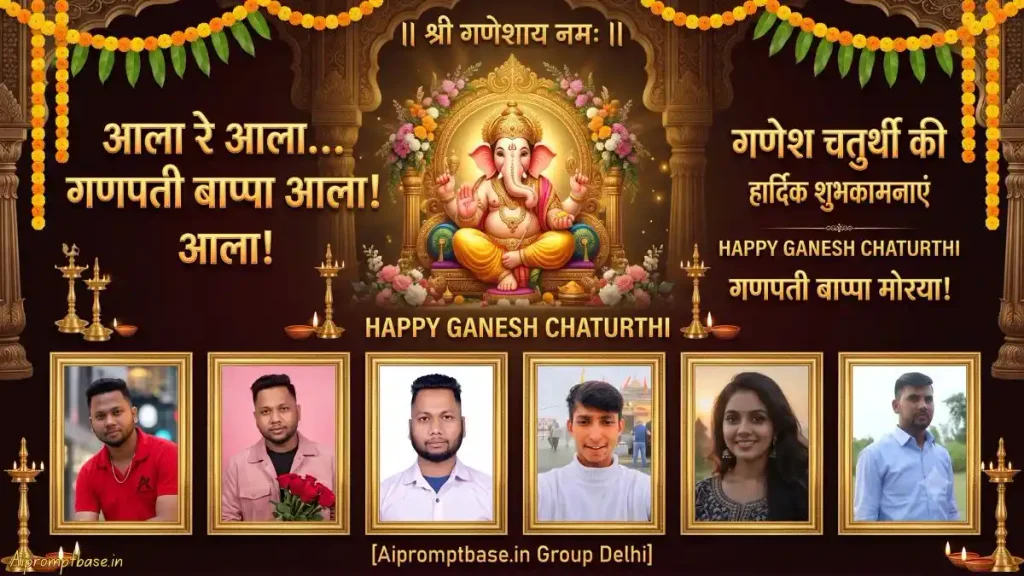
तीसरे Prompt में सबसे ज्यादा Focus उस Problem पर है जो Group Poster में बार-बार परेशान करती है—4 Photos देने पर 5 Frames या 9 Photos देने पर 10 Faces बन जाना। इसमें Exact Count Rule को शुरुआत से Final Check तक repeat किया गया है, इसलिए ज्यादा Members वाला Flex बनाते समय मैं इसे पहले Try करूंगा।
STRICT HIGHEST-PRIORITY RULE: BEFORE creating the poster, COUNT the separately uploaded human portrait photos. The FINAL POSTER MUST contain EXACTLY the SAME NUMBER of HUMAN PORTRAIT FRAMES as uploaded portrait photos. THIS RULE MUST NEVER BE VIOLATED. 1 uploaded photo = EXACTLY 1 portrait frame 2 uploaded photos = EXACTLY 2 portrait frames 3 uploaded photos = EXACTLY 3 portrait frames 4 uploaded photos = EXACTLY 4 portrait frames 5 uploaded photos = EXACTLY 5 portrait frames 6 uploaded photos = EXACTLY 6 portrait frames 7 uploaded photos = EXACTLY 7 portrait frames 8 uploaded photos = EXACTLY 8 portrait frames 9 uploaded photos = EXACTLY 9 portrait frames 10 uploaded photos = EXACTLY 10 portrait frames DO NOT create even ONE extra portrait frame. DO NOT create empty frames for decoration. DO NOT create placeholder frames. DO NOT duplicate any uploaded photo. DO NOT repeat any person. DO NOT invent additional faces or people. DO NOT omit any uploaded photo. IMPORTANT: Decorative arches, borders or ornaments must NOT look like additional empty photo frames. FIRST count portraits → THEN create exactly that many frames → THEN design the remaining poster around those frames. ————————————————– Create a premium professional HORIZONTAL 16:9 Ganesh Chaturthi flex banner with a unique Royal Ganpati Mandap theme. Use a luxurious deep-maroon, dark-brown and antique-gold background with elegant Indian ornamental details, marigold garlands, mango-leaf toran, traditional brass lamps, diyas and warm cinematic festive lighting. Place a magnificent traditional Lord Ganesha prominently in the CENTER-TOP inside a grand golden mandap with beautiful floral decoration and soft divine golden illumination. Add these texts beautifully: “॥ श्री गणेशाय नमः ॥” MAIN LARGE HEADLINE: “आला रे आला… गणपती बाप्पा आला!” Below: “गणेश चतुर्थी की हार्दिक शुभकामनाएं” “HAPPY GANESH CHATURTHI” “गणपती बाप्पा मोरया!” “[Aipromptbase.in Group Delhi]” Use premium festive metallic-gold typography with subtle saffron highlights, elegant 3D depth, glow and shadows. Keep all Devanagari text correctly spelled and clearly readable. PORTRAIT LAYOUT: After counting the uploaded photos, automatically arrange EXACTLY that many portraits in elegant matching golden frames. For fewer photos, make the frames larger and arrange them in one centered horizontal row. For more photos, use two balanced rows if required. Automatically adjust frame size, spacing and positioning so there are NO empty spaces requiring additional frames. The poster must look intentionally designed for the EXACT uploaded photo count. STRICT FACE LOCK: Use each ORIGINAL uploaded portrait photo directly inside its corresponding frame, like inserting the actual photo into a Canva/Photoshop frame. DO NOT regenerate, redraw or recreate the person’s face. Preserve the EXACT original facial identity: face shape, eyes, eyebrows, nose, lips, jawline, skin tone, hairstyle, hairline, beard/moustache, age, expression and natural facial proportions. Only crop, proportionally resize and make very minor lighting/color adjustments. No beautification, face swap, facial reshaping, skin smoothing or AI reinterpretation. FINAL CHECK BEFORE OUTPUT: Count the uploaded portrait photos again. Count the portrait frames in the finished poster. BOTH NUMBERS MUST BE IDENTICAL. If 4 photos were uploaded, there MUST be exactly 4 portrait frames — NOT 5, 6, 8 or 9. If 9 photos were uploaded, there MUST be exactly 9 portrait frames — NOT 10. Never fill unused space by adding an empty frame. Instead, enlarge, center or increase spacing between the existing required frames. No extra people, no duplicate portraits, no empty frames, no placeholder frames, no invented faces, no random text and no watermark. Final result: ultra-high-resolution, print-ready, luxurious and professionally balanced Indian Ganesh Chaturthi horizontal flex banner. ABSOLUTE PRIORITY: UPLOADED HUMAN PHOTOS COUNT = PORTRAIT FRAMES COUNT = PEOPLE SHOWN. These three numbers MUST ALWAYS be exactly equal.
अपनी Group Photos से Ganesh Chaturthi Flex Poster कैसे बनाएं?
दोस्तों, Ganesh Chaturthi Flex Banner AI Prompt इस्तेमाल करने से पहले सारी Member Photos एक साथ तैयार कर लें। कोशिश करें कि Photos WhatsApp से कई बार Forward हुई blurry copies न हों; Face साफ, Hairline visible और Lighting ठीक होगी तो Poster में Identity संभालना आसान रहेगा।
इसके बाद तरीका काफी सीधा है:
ChatGPT या Gemini का ऐसा image workflow खोलें जिसमें Reference Photos Upload की जा सकें।
जिन लोगों को Flex में रखना है उनकी सभी Original Portrait Photos एक साथ Upload करें।
ऊपर से पसंद का Ganesh Chaturthi Poster Editing Prompt Copy करें।
Prompt में [YOUR GROUP / YOUTH CLUB NAME] या [Aipromptbase.in Group Delhi] को अपने Group/Club Name से Replace करें।
Prompt Paste करके Poster Generate करें।
पहली Generation में सबसे पहले Members की संख्या और Frames की संख्या मिलाएं।
इसके बाद Faces, Group Name और Hindi Greeting देखें।
कोई Member missing/duplicate हो तो उसी Prompt के साथ स्पष्ट correction देकर Regenerate करें।
Final Flex को Print कराने से पहले text spelling और faces को full size में जरूर देखें।
ChatGPT या Gemini—Ganpati Group Flex के लिए कौन बेहतर है?
दोस्तों, Ganesh Chaturthi Flex Banner AI Prompt को आप ChatGPT और Gemini दोनों में Try कर सकते हैं, लेकिन Group Poster में मैं सिर्फ Design देखकर Tool को बेहतर नहीं मानूंगा। असली Result वह है जिसमें सभी Members के Faces पहचान में आएं, Photo Count सही रहे और Frames का Layout Balanced दिखे।
एक ही Ganesh Chaturthi Poster Prompt for Gemini को दोनों Tools में इस्तेमाल करने पर Result अलग मिल सकता है। इसलिए अपनी Same Group Photos और Same Prompt से दोनों में एक Generation निकालकर देखें—जिसमें Face Lock + Exact Frame Count + Clean Flex Layout बेहतर मिले, उसी Result को Final करना ज्यादा Practical रहेगा।
4 Photos Upload की हैं तो Poster में 4 ही Faces कैसे रखें?
दोस्तों, Group Flex में “Use All Photos” लिखना कई बार काफी नहीं होता। Ganesh Chaturthi AI Poster Prompt में Photo Count को साफ Rule की तरह देना ज्यादा काम आता है—4 Photos = 4 Frames, 6 Photos = 6 Frames, 9 Photos = 9 Frames।
इसीलिए तीसरे Prompt में Exact Photo Count + Auto-Adjust Layout दोनों रखे गए हैं। जगह ज्यादा बचे तो AI नया Empty Frame बनाने के बजाय मौजूदा Frames को बड़ा करके Spacing Adjust करे। इससे Ganesh Chaturthi Flex Banner AI Prompt का Result random template जैसा नहीं, आपके Group की Photos के हिसाब से बनाया हुआ लगता है।
Face Lock चाहिए तो Group Photos Upload करते समय ये गलती न करें
दोस्तों, Ganesh Chaturthi Poster Editing Prompt में Face Lock कितना भी strict हो, बहुत छोटी, blurry या heavily filtered Photo देने पर Original Identity बनाए रखना मुश्किल हो सकता है। हर Member की ऐसी Photo रखें जिसमें Eyes, Nose, Jawline, Hair और Beard/Moustache साफ समझ आएं।
और जहां possible हो, पहले से collage बनाकर Upload करने के बजाय हर Member की Original Photo अलग-अलग Reference के रूप में दें। इससे Prompt को साफ पता रहता है कि कितने अलग लोग हैं और किस Original Face को किस Portrait Frame में रखना है।
AI ने Extra Person या Duplicate Frame बना दिया तो क्या लिखें?
पूरा Ganesh Chaturthi Flex Banner AI Prompt बदलने की जरूरत नहीं। उसी Chat में correction बहुत specific रखें:
“There are 6 uploaded human photos. Keep exactly 6 people and exactly 6 portrait frames. Remove every extra/duplicate frame and person. Do not change the six original faces. Rebalance the existing six frames to fill the available space.”
यहां सिर्फ “extra person remove करो” कहने के बजाय actual Count बताना ज्यादा useful है। इससे AI को correction का clear target मिलता है।
Flex social media पर पोस्ट करने या Print कराने से पहले Hindi Text की ये गलती जरूर सुधारें
दोस्तों, Ganesh Chaturthi Banner AI Prompt से Design और Faces शानदार निकल सकते हैं, लेकिन AI कई बार Hindi Text की मात्रा, Spelling या अक्षर बिगाड़ देता है। बड़े Flex पर छोटी-सी गलती भी तुरंत नजर आती है।
इसलिए Print से पहले “गणेश चतुर्थी की हार्दिक शुभकामनाएं”, Group Name और बाकी सभी Text को एक बार जरूर पढ़ें। अगर सिर्फ Text गलत है तो पूरा Poster दोबारा Generate न करें—उसी Design में सिर्फ गलत Line को सही Spelling से Replace करवाना बेहतर रहेगा।
FAQs अक्सर पूछे जाने वाले सवाल
Ganesh Chaturthi Flex Banner AI Prompt से कितनी Photos का Poster बना सकते हैं?
यह Layout available canvas और tool capability पर depend करेगा, लेकिन दिए गए Prompts में photo count के हिसाब से Frames auto-adjust करने की Instructions हैं। ज्यादा Members होने पर दो rows इस्तेमाल की जा सकती हैं।
4 Photos Upload करने पर 4 Frames ही कैसे रखें?
Prompt में exactly 4 uploaded portraits = exactly 4 frames = exactly 4 people जैसी explicit Instruction रखें और empty decorative frames को भी forbid करें।
क्या Ganesh Chaturthi Poster Prompt for Gemini में अपनी Photos Upload कर सकते हैं?
अगर आपके Gemini image workflow में reference-image generation/editing उपलब्ध है, तो अलग-अलग Member Photos Upload करके Prompt इस्तेमाल किया जा सकता है।
Group Poster में Face बदलने से कैसे बचाएं?
Clear Original Portraits इस्तेमाल करें और प्रत्येक व्यक्ति की Photo अलग Reference के रूप में दें। Prompt में regeneration, beautification और face reshaping को explicitly रोकना भी useful है।
Poster Print कराने से पहले क्या Check करें?
Photo Count, Frame Count, Duplicate Faces, Hindi Spelling, Group Name और Aspect Ratio सबसे पहले देखें। खासकर large Flex में छोटी AI mistakes भी साफ दिखाई देती हैं।
निष्कर्ष
दोस्तों, Ganesh Chaturthi Flex Banner AI Prompt का असली फायदा तभी है जब आपको हर Member की Photo manually Photoshop में Frame के अंदर लगाने की जरूरत न पड़े। आप अपनी Group Photos दें और Layout उन्हीं की संख्या के हिसाब से खुद adjust हो—यही इस पूरे workflow को useful बनाता है।
अगर आप इन Ganesh Chaturthi Poster Editing Prompt से अपना Ganpati Flex बनाते हैं, तो नीचे Comment में कितनी Photos Upload की थीं और AI ने Exact उतने Frames बनाए या नहीं, जरूर बताइए। खासकर 7–10 Members वाले Results का Experience दूसरे Readers के लिए भी काफी काम आएगा।
नमस्कार! मैं लवित राव हूँ। मैं AI Prompts, Gemini AI, ChatGPT और AI Image Editing पर काम करता हूँ। इस वेबसाइट पर मैं केवल वही प्रॉम्प्ट्स और गाइड्स शेयर करता हूँ जिन्हें मैं खुद टेस्ट करता हूँ, ताकि आपको सही, उपयोगी और आसानी से समझ आने वाली जानकारी मिल सके।