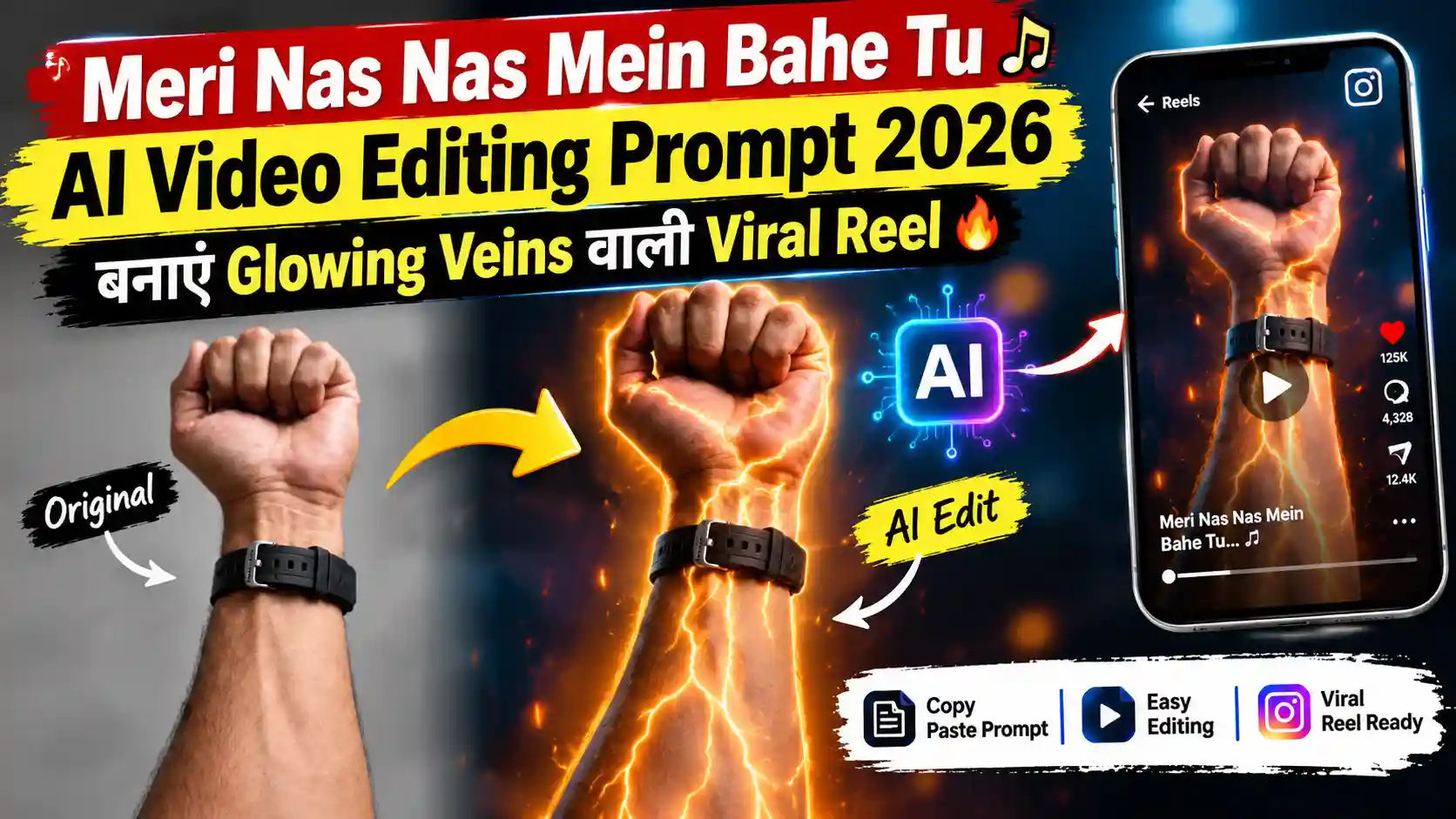
नमस्कार दोस्तों, मैं Lavit! इन दिनों एक ऐसा AI Video Look देखने को मिल रहा है, जिसमें कलाई पर चमकती हुई लाल-नारंगी नसें दिखाई देती हैं और कैमरा धीरे-धीरे उनके अंदर एक रहस्यमयी 3D Tunnel में पहुंच जाता है। इसके बाद आपकी पसंद का Letter चमकते हुए दिखाई देता है। देखने में यह साधारण Reel से ज्यादा एक Cinematic VFX Scene जैसा लगता है।
अगर आप भी Meri Nas Nas Mein Bahe Tu AI Video Editing Prompt से अपनी Photo को ऐसी Reel में बदलना चाहते हैं, तो यहां दो अलग Styles के Prompts मिलेंगे। पहले में चमकती नसों के अंदर 3D Letter और Tunnel Effect है, जबकि दूसरे में नसों से बनता हुआ Glowing Heart है। साथ ही Google Flow और Gemini से Video बनाने का तरीका भी बताया गया है।
Meri Nas Nas Mein Bahe Tu AI Video Trend में क्या खास है?
इस Trend का पूरा प्रभाव तीन चीजों पर टिका है—कलाई का Close-Up, त्वचा के नीचे बहती रोशनी जैसा VFX और आखिर में दिखाई देने वाला Letter। आप अपनी पसंद का पहला अक्षर चुनकर इसे अपने नाम या किसी खास व्यक्ति के Initial के साथ बना सकते हैं।
Meri Nas Nas Mein Bahe Tu AI Video में हाथ और कलाई मुख्य Subject होते हैं, इसलिए इस Trend के लिए चेहरे वाली Selfie की जगह हाथ और Forearm की साफ Photo ज्यादा उपयोगी है। अच्छी Lighting और साफ Reference Image से AI को त्वचा, घड़ी और हाथ की बनावट समझने में मदद मिल सकती है।
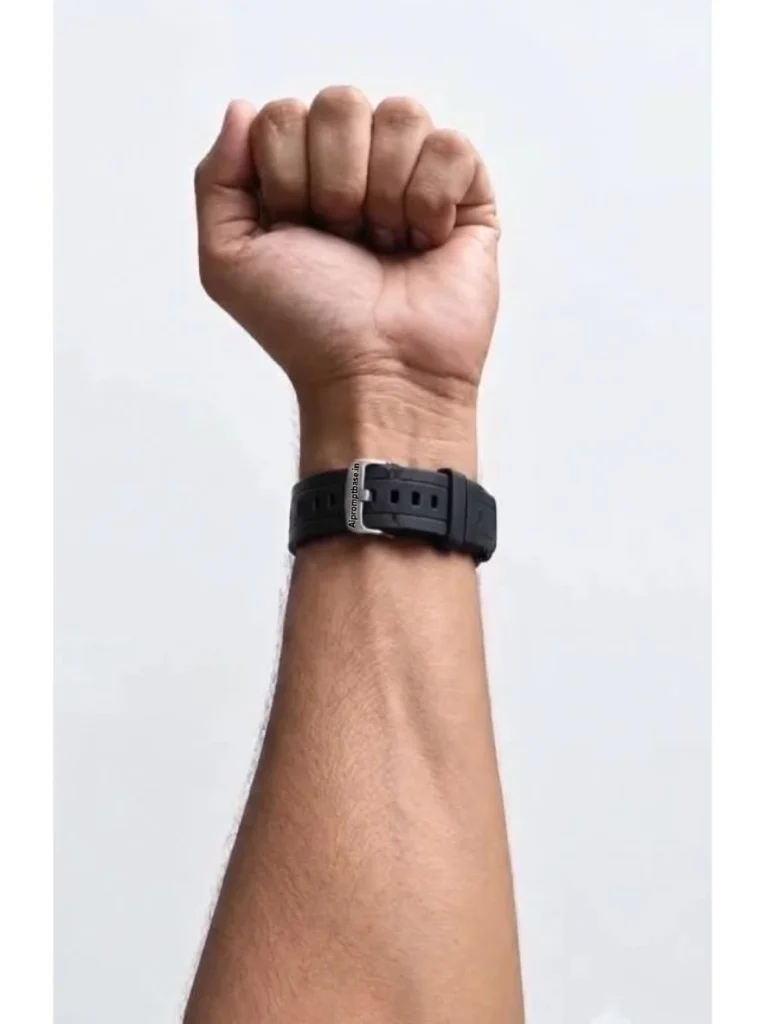
1. Meri Nas Nas Mein Bahe Tu AI Video Editing Prompt – Glowing Veins और 3D Letter Tunnel
इस Meri Nas Nas Mein Bahe Tu AI Video Editing Prompt में कलाई से लाल-नारंगी रोशनी फैलती है और कैमरा एक चमकती नस के अंदर जाता है। Tunnel के भीतर आपकी चुनी हुई Letter की कई चमकदार 3D आकृतियां दिखाई देती हैं। यह Look खासकर उन Reels के लिए है जिनमें आखिर में Letter का Cinematic Reveal दिखाना हो।
Ready-to-Copy AI Video Prompt:
ध्यान दें: Prompt में [YOUR LETTER] की जगह अपना एक Capital Letter लिखें, जैसे A, L, R या S। बेहतर पठनीयता के लिए शुरुआत में एक ही अक्षर रखें।
2. Meri Nas Nas Mein Bahe Tu AI Video Prompt – कलाई पर Glowing Heart Effect
अगर आपको Tunnel की जगह एक Romantic Look चाहिए, तो यह दूसरा Meri Nas Nas Mein Bahe Tu AI Video Prompt इस्तेमाल करें। इसमें कलाई के बीच से चमकती नसें फैलती हैं, फिर रोशनी Heart Shape बनाती है और अंत में चुना हुआ 3D Letter दिखाई देता है।
Ready-to-Copy AI Video Prompt:
इन दोनों में फर्क साफ है: पहला Prompt आपको 3D Tunnel और Letter Reveal देता है, जबकि दूसरा Wrist Heart और Glowing Letter वाले Romantic Effect पर केंद्रित है।
Google Flow से Meri Nas Nas Mein Bahe Tu AI Video कैसे बनाएं?
इस Effect के लिए Google Flow में Image-to-Video या Frames वाला तरीका उपयोगी हो सकता है। इसकी उपलब्ध सुविधाएं और विकल्प आपके चुने हुए Model तथा Account के अनुसार अलग हो सकते हैं। Google की Official Flow Guide में Image Reference, Video Generation और Start-End Frames की प्रक्रिया समझाई गई है।
- कलाई की Photo तैयार करें: अपनी मुट्ठी और Forearm की साफ Close-Up Photo लें। Background ज्यादा व्यस्त न हो और हाथ स्पष्ट दिखाई दे।
- Google Flow खोलें: Google Flow पर Login करके नया Project बनाएं।
- Video Mode चुनें: Prompt Box में Video विकल्प खोलें। अपनी कलाई की Photo को Reference या Start Frame के रूप में जोड़ें।
- Prompt Paste करें: ऊपर दिए गए दोनों Prompts में से एक चुनें।
[YOUR LETTER]को अपने अक्षर से बदलें और बाकी निर्देश वैसे ही रखें। - Video Generate करें: उपलब्ध Settings में Vertical 9:16 और अपनी जरूरत के अनुसार Duration चुनें। Generate करने के बाद देखें कि हाथ की बनावट और Letter सही हैं या नहीं।
अगर आपके Account में Flow उपलब्ध नहीं है, तो Gemini में Create video विकल्प भी देख सकते हैं। वहां अपनी Photo Upload करके Prompt दें और Submit करें। Gemini में Video Generation की उपलब्धता Account और Plan पर निर्भर करती है
अपनी Reel को बेहतर बनाने के 3 काम के Tips
1. साफ Wrist Photo चुनें: बहुत अंधेरी या धुंधली Photo से त्वचा और घड़ी की Details समझना मुश्किल हो सकता है। समान रोशनी वाली Close-Up Photo बेहतर Reference देती है।
2. Letter की Spelling खुद Check करें: AI कभी-कभी 3D अक्षर का आकार बदल देता है या अतिरिक्त Letters बना देता है। Video Final करने से पहले इसे ध्यान से देखें।
3. Music बाद में जोड़ें: Video तैयार होने के बाद Instagram की Music Library में “Meri Nas Nas Mein Bahe Tu” खोजें और उपलब्ध Audio में से उपयुक्त Version चुनें। फिर Beat के हिसाब से Video का Opening और Letter Reveal मिलाएं।
एक बात याद रखें—Prompt में Face या Object को Same रखने के निर्देश देने से हर Frame में बिल्कुल सही Result मिलने की Guarantee नहीं होती। हाथ की बनावट, रोशनी और Letter की Readability जरूर जांचें।
FAQs अक्सर पूछे जाने वाले सवाल
Meri Nas Nas Mein Bahe Tu AI Video बनाने के लिए कौन-सी Photo चाहिए?
एक साफ Close-Up Photo जिसमें आपकी मुट्ठी, कलाई और Forearm दिखाई दें। घड़ी पहनते हैं तो उसे भी Frame में रख सकते हैं, लेकिन यह जरूरी नहीं है।
क्या इस AI Video में अपना नाम दिखा सकते हैं?
हां, Prompt में [YOUR LETTER] की जगह अपना Initial इस्तेमाल कर सकते हैं। अगर पूरा नाम दिखाना है, तो अक्षरों की संख्या बढ़ने पर Text गलत बनने की संभावना भी बढ़ सकती है।
क्या Meri Nas Nas Mein Bahe Tu AI Video Gemini से बन सकता है?
अगर आपके Gemini Account में Create Video सुविधा उपलब्ध है, तो Reference Photo Upload करके Prompt इस्तेमाल कर सकते हैं। Result और उपलब्ध Duration आपके Account तथा Tool Settings पर निर्भर करेंगे।
Glowing Veins Effect असली जैसा क्यों नहीं दिखता?
बहुत मोटी चमकदार Lines या जरूरत से ज्यादा तेज रोशनी Effect को नकली दिखा सकती है। साफ Reference Photo और पतली, प्राकृतिक Branching Light वाले निर्देश बेहतर परिणाम पाने में मदद कर सकते हैं।
क्या इस Trend के लिए अपना चेहरा दिखाना जरूरी है?
नहीं। इन दोनों Prompts में मुख्य Focus हाथ, कलाई और Forearm पर है। इसलिए चेहरा दिखाए बिना भी यह Effect बनाया जा सकता है।
निष्कर्ष
Meri Nas Nas Mein Bahe Tu AI Video Editing Prompt से आप एक साधारण Wrist Photo को Glowing Veins, Cinematic Tunnel और 3D Letter वाले Visual में बदलने की कोशिश कर सकते हैं। अगर आपको ज्यादा Romantic Effect चाहिए, तो Heart वाला दूसरा Prompt चुनें।
अपनी साफ Photo Upload करें, पसंद का Initial डालें और Generate करने के बाद हाथ व अक्षर की Details जरूर जांचें। इसके बाद Instagram की Music Library से उपयुक्त Audio जोड़कर अपनी Reel तैयार कर सकते हैं।
आप कौन-सा Effect बनाना पसंद करेंगे—Glowing Veins वाला 3D Tunnel या कलाई पर बनता हुआ Heart? Comment में बताइए!
नीचे लिखे अन्य लेख भी देखे:-