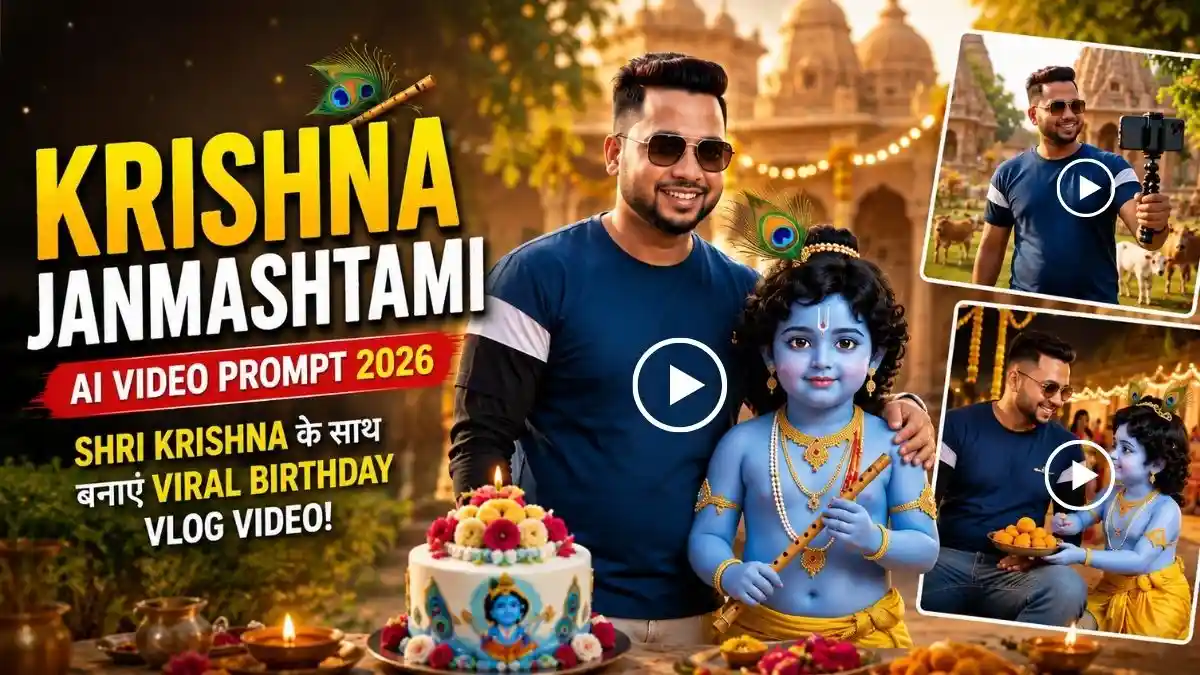
नमस्कार दोस्तों, मैं Lavit! सोचिए Janmashtami की रात आप Gokul पहुंचे हों और आपके सामने स्वयं Shri Krishna का Birthday Celebration चल रहा हो। चारों तरफ फूलों और दीपों की सजावट हो, पीछे सुंदर मंदिर जगमगा रहा हो और आप Camera हाथ में लेकर Shri Krishna के साथ अपना Vlog Record करते हुए कहें—“आज मैं श्री कृष्ण जी के साथ उनका जन्मदिन मनाने गोकुल धाम आया हूं।”
सुनने में यह किसी Movie Scene जैसा लगता है, आजकल AI की मदद से अपनी Normal Photo को ऐसी Krishna Janmashtami AI Video में बदला जा सकता है। मैंने सिर्फ Krishna Ji को Background में जोड़ने के बजाय पूरा Scene Vlog Story की तरह रखा है, ताकि Video देखने पर लगे कि आप सच में Janmashtami Celebration के बीच मौजूद हैं।
इस तरह की Video में सबसे मुश्किल हिस्सा Shri Krishna को सुंदर दिखाना नहीं, बल्कि अपना Face Original रखना, Krishna Ji का Divine Look Consistent रखना और Hindi Dialogue की Lip-Sync Natural बनाना है। इसलिए इस लेख में आपको पहले Tested-style Base Image Prompt मिलेगा, फिर उसी Image को Animate करने के लिए Matching Krishna Janmashtami AI Video Prompt और आखिर में इसे Gemini/Flow AI से बनाने का आसान तरीका मिलेगा और Krishna Ji ke sath AI vlog kaise banaye सीखेंगे।
Krishna Janmashtami AI Vlog Video में क्या खास है?
Normal Janmashtami AI Edit में अक्सर Shri Krishna के साथ सिर्फ एक Photo बनाई जाती है, लेकिन यहां हम उसी Photo को Short Vlog Video में बदलेंगे, जिससे पूरा Scene ज्यादा Real और Interesting लगेगा।
Video में आप Vrindavan Gokul Dham में Little Krishna के साथ Vlogging करते हुए दिखाई देंगे। कहीं पीछे Janmashtami Celebration और सजा हुआ मंदिर नजर आएगा, तो कहीं Dahi Handi और Krishna Ji का Birthday Celebration देखने को मिलेगा। साथ में आपका छोटा सा Hindi Dialogue Video को Personal Touch देगा।
यानी सिर्फ एक AI Photo नहीं, बल्कि कुछ Seconds में ऐसा Feel मिलेगा जैसे आप खुद Little Krishna के साथ Vrindavan Gokul Dham में Janmashtami Celebrate करते हुए अपना Vlog Shoot कर रहे हैं।
तो चलिए शुरू करते हैं! नीचे आपको Step-by-Step पूरा तरीका मिलेगा—पहले अपनी Photo से Little Krishna के साथ Realistic Janmashtami AI Image बनाएंगे और फिर उसी Image को Animate करके Cinematic AI Vlog Video में बदलेंगे। पूरा लेख देखे इसमे आपको 3 अलग अलग video प्रॉम्प्ट मिलेंगे।
नीचे दिया Krishna Janmashtami AI Vlog Style Image Prompt पूरा Copy करें।
Prompt Paste करके Image Generate करें।
Face और Shri Krishna का Look ध्यान से Check करें।
Face Original जैसा न हो तो Video बनाने से पहले Image दोबारा Generate करें।
मेरी Tip: Prompt में दिए गए Face Lock Instructions Remove या Short न करें। आपके viral article में भी यही workflow इस्तेमाल किया गया है—पहले सही reference image, फिर उसी से video.
Krishna Janmashtami AI Vlog Style Image Prompt
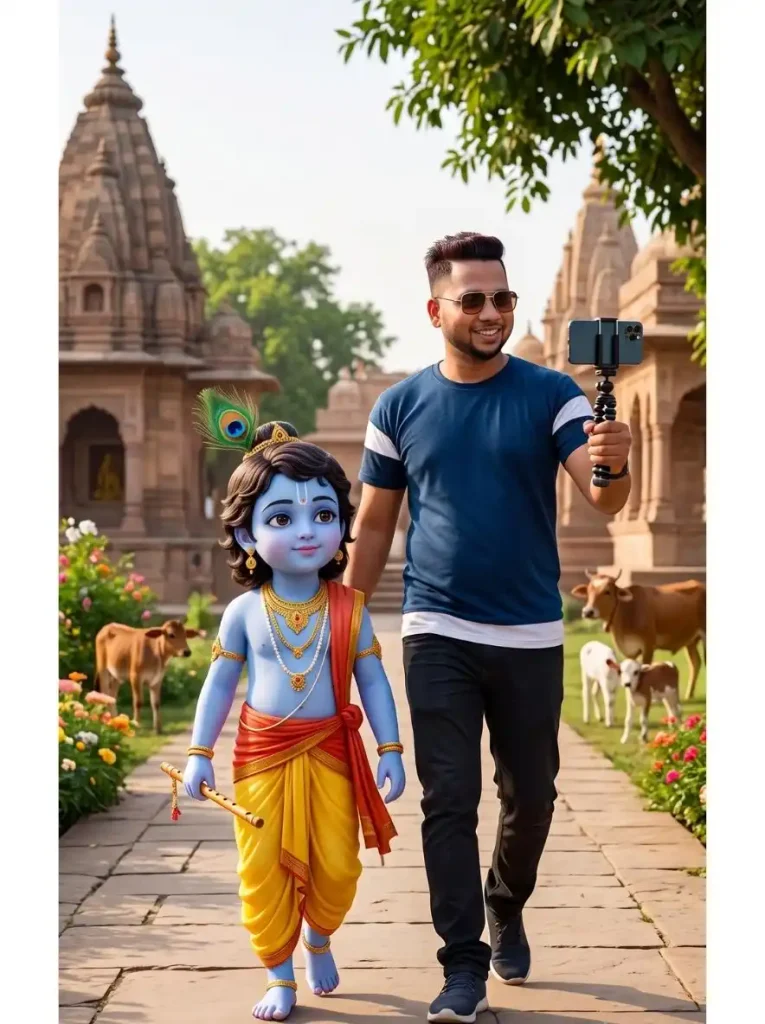
ABSOLUTE FACE & IDENTITY LOCK — HIGHEST PRIORITY: Use the uploaded photo as the only facial identity reference. The person in the generated image must be exactly the same real person as in the uploaded photo. Preserve 100% the original face shape, forehead, hairline, hairstyle, eyebrows, eyes, eye shape, nose, lips, cheeks, jawline, ears, beard/moustache, skin tone, age and all natural facial proportions. Do not regenerate, reinterpret, beautify, enhance, reshape, slim, smooth, stylize or modify the face in any way. Preserve natural pores, skin texture and small facial details. No beauty filter, no artificial skin and no AI-looking face. Keep the original natural expression from the reference photo. The result must look like the same person was directly photographed by a professional DSLR camera, not like an AI recreation. Create an ultra-realistic vertical 9:16 full-body vlog photo in Vrindavan. Show me walking naturally while holding a smartphone or small vlog camera in one hand, recording myself. Keep my entire body from head to feet visible. Beside me walks a cute beautiful 3D “Little Krishna” in Jubilee style, with the same sweet visual feel as the provided Krishna reference—small child proportions, innocent round face, big expressive eyes, soft blue skin, cute gentle smile, curly black hair, peacock feather, golden jewellery, yellow dhoti, orange-red cloth and small bansuri. Krishna Ji should be around 55–60% of my height, walking close beside me, not tiny or oversized. Show a beautiful Vrindavan/Gokul environment with green trees, flowers, traditional temples, village pathway and a few cute small cows and calves in the background. Natural golden daylight, realistic shadows, DSLR photography, realistic human skin, cinematic depth of field, 8K Ultra HD, photorealistic, 9:16 vertical. No face alteration, no facial reconstruction, no extra people, no duplicate Krishna, no distorted hands, no text, no watermark.
Step 2: Photo को Shri Krishna Janmashtami AI Video में बदलें
जब आपकी Base Image में Face और Little Krishna का Look सही आ जाए, तो अब उसी Photo को Gemini, Flow AI या किसी Image-to-Video Tool में Upload करके Janmashtami AI Vlog Video में बदल सकते हैं।
मैंने Video Prompt में जानबूझकर बहुत ज्यादा Actions नहीं रखे हैं। 8–10 Seconds की Short Clip, हल्का Camera Movement, Natural Body Motion और छोटा Hindi Dialogue रखने से Scene ज्यादा Real लगता है और Face बिगड़ने की संभावना भी कम रहती है। Janmashtami AI photo se video kaise banaye नीचे दिए स्टेप्स फॉलो करो।
Flow AI में Video बनाने के Steps
सबसे पहले Flow AI की Website खोलें और अपने Account से Login करें।
New Project विकल्प चुने Create Video या Video Model वाला Option चुनें।
अब + (Plus) आइकन पर क्लिक करके पहले बनाई गई Krishna Janmashtami AI Vlog Style Image Upload करें।
नीचे दिया गया Krishna Janmashtami AI Video Prompt Copy करके Prompt Box में Paste करें।
अपनी जरूरत के अनुसार Video Ratio (9:16 या 16:9) चुनें।
अब Generate पर क्लिक करें और कुछ देर इंतजार करें।
Video तैयार होने के बाद उसे Preview करें। अगर Result पसंद आए, तो Download करके सीधे Instagram Reels, YouTube Shorts या Facebook पर इस्तेमाल कर सकते हैं।
Krishna Janmashtami AI Video Prompt | Krishna Janmashtami AI Vlog Style Video Prompt
Create a 10-second cinematic video using the reference image. Keep the young man’s face exactly the same.FACE LOCK – MUST FOLLOW Use both uploaded reference photos. Face must be 100% exact same — no reshaping, no beautification, no AI modification. Preserve real skin texture, facial structure, hairstyle, age, expression exactly as original. Ultra-HD face clarity, fully human look. The scene takes place on the colorful streets of Gokul vrindavan in bright daylight. The young man is holding the camera in selfie vlog style while walking with cute beautiful 3D “Little Krishna. The young man looks into the camera and says in Hindi: “Aaj main Vrindavan Gokuldham aaya hoon Little Krishna Ji ka Birthday manane.” Little Krishna immediately smiles and says: “Haan haan, Aap sab bhi jaldi aajao.” The young man says in Hindi: ” Aap sabhi ko janmashtami ki subhkamnaye.
दूसरा Viral Scene: Little Krishna के साथ Dahi Handi AI Vlog बनाएं
अगर आप अपनी Janmashtami AI Video में Dahi Handi का मजेदार Scene भी दिखाना चाहते हैं, तो नीचे दिया Prompt Try करें। इसमें आप Little Krishna के साथ Vlogging करते नजर आएंगे और पीछे बच्चे Makhan Matki फोड़ते हुए दिखाई देंगे। इससे Video में Vrindavan की Janmashtami Celebration वाली Feel आएगी।
पहले नीचे दिए Prompt से Realistic 9:16 Base Image बनाएं और Face सही होने के बाद उसी Image को Video में Animate करें।
Little Krishna के साथ Dahi Handi AI Image Prompt
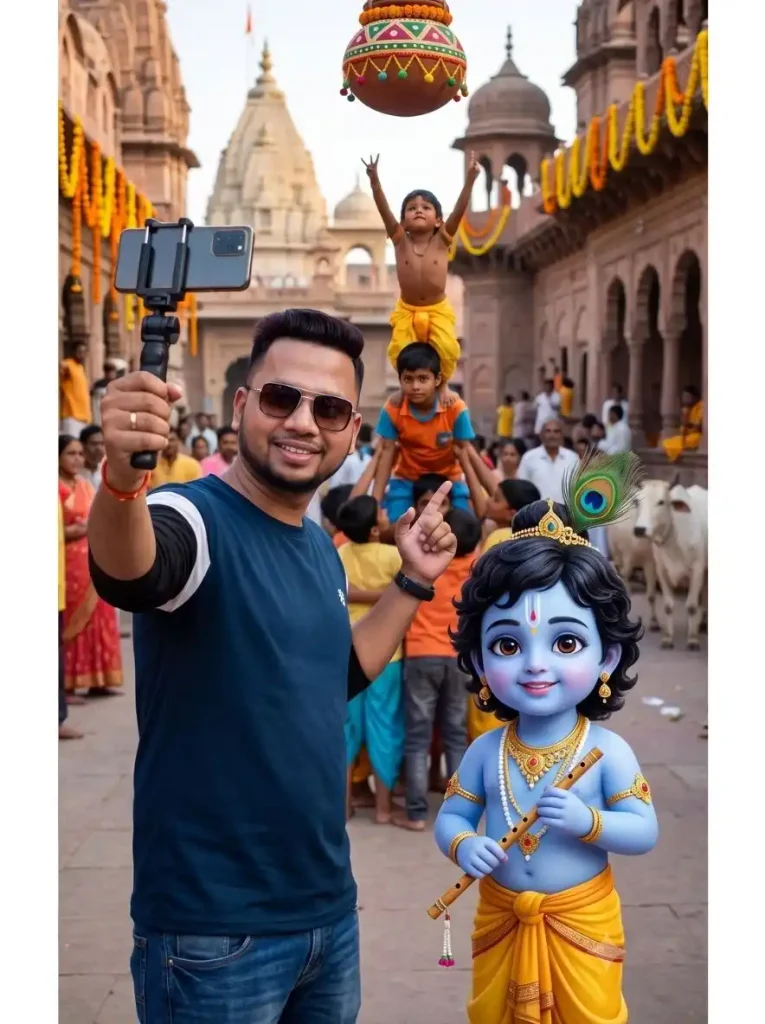
STRICT IDENTITY LOCK — HIGHEST PRIORITY: Use the uploaded photo as the only facial identity reference. The man must remain exactly the same real person from the uploaded photo. Preserve his exact face shape, forehead, hairline, hairstyle, eyebrows, eyes, nose, lips, cheeks, jawline, ears, beard/moustache, skin tone, age and natural facial proportions. Do not recreate, beautify, reshape, smooth, enhance or reinterpret his face. Preserve natural pores, skin texture and facial details. Keep the same natural expression. The result must look like the original person was actually photographed at this location, not an AI-generated version of him. Create a photorealistic vertical 9:16 Janmashtami vlog photograph in Vrindavan. Show the man in the foreground from head to knees, holding a smartphone/camera at a comfortable vlog distance in one hand and naturally gesturing toward the celebration with the other. Keep his face sharp, properly exposed and clearly recognizable, without wide-angle facial distortion. Standing close beside him is cute Little Bal Krishna, approximately 55% of the man’s height, with an innocent child-like round face, large gentle eyes, naturally soft blue skin, curly black hair, peacock feather, small gold jewellery, yellow pitambar and a little bansuri. Krishna Ji should look lifelike, soft and adorable like a premium realistic Krishna portrayal — not plastic, not cartoon, not adult and not exaggerated 3D CGI. Behind them, clearly show a joyful Janmashtami Dahi Handi scene with a few young children safely making a small human pyramid beneath a decorated hanging makhan matki. Keep this activity several meters behind the main subjects so the man and Krishna remain the clear focus. Add an authentic Vrindavan lane, old temple architecture, marigold decorations, green trees and 2–3 small cows/calves in the distant background. Professional DSLR photograph, 35mm natural perspective, realistic Indian daylight, true-to-life skin tones, physically accurate shadows, realistic clothing and hands, subtle cinematic depth of field, HDR, highly detailed 8K photographic realism. No artificial face, no face morphing, no beauty filter, no oversized head, no fisheye distortion, no duplicate Krishna, no distorted hands, no text, no watermark.
Janmashtami Dahi Handi AI video prompt
Animate the uploaded image into a realistic cinematic 10-second Janmashtami selfie-vlog video. Use the uploaded image as the exact visual reference and strictly lock the person’s face throughout every frame. Keep the same facial identity, skin tone, hairstyle and natural facial proportions with only a very slight natural smile—no face morphing, beautification or exaggerated expressions. Keep Shri Krishna exactly consistent with the reference image, wearing the same yellow pitambar, peacock-feather crown, ornaments and holding his bansuri. The person gently walks forward while holding the camera in selfie-vlog style, Shri Krishna walks calmly beside him, and the decorated Gokul temple glows beautifully behind them. The person looks naturally into the camera and says in Hindi with accurate lip-sync: “नमस्कार दोस्तों! आज मैं श्री कृष्ण जी के साथ उनका जन्मदिन मनाने गोकुल धाम आया हूं। आप सभी को श्री कृष्ण जन्माष्टमी की हार्दिक शुभकामनाएं!” Shri Krishna looks toward the camera with a peaceful soft smile and gently raises one hand in blessing. Smooth handheld vlog movement, natural body motion, devotional festive ambience, temple bells and soft flute music. 8K Ultra HD, vertical 9:16, no face change, no extra people, no character deformation, no subtitles, no text, no watermark.
एक और Viral Scene: Krishna Ji के Birthday Cake के साथ
अगर पहली Video से अलग Scene चाहिए तो Krishna Birthday Celebration वाला Version Try कर सकते हैं। इसमें Vlog के साथ Cake-Cutting Moment रहेगा, इसलिए दोनों Videos एक जैसी नहीं लगेंगी।
Krishna Birthday Celebration AI Photo Prompt
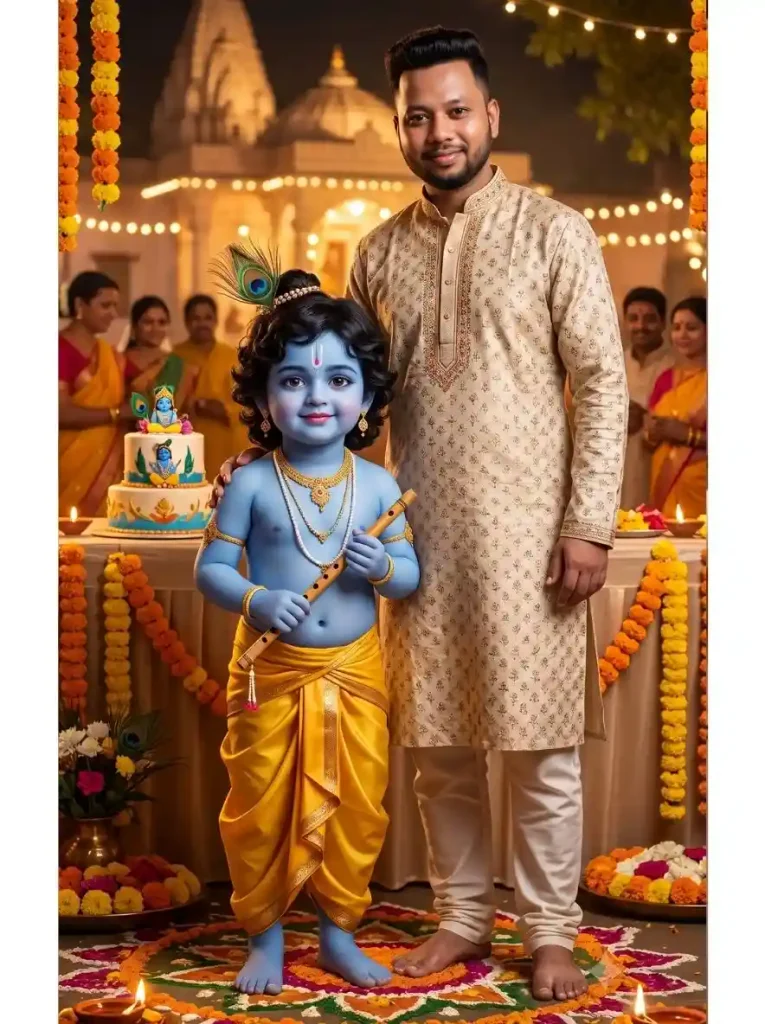
Use the uploaded photo as the exact identity reference. ABSOLUTE FACE LOCK: preserve the person’s real face exactly as uploaded—same face shape, eyes, eyebrows, nose, lips, jawline, skin tone, hairstyle, hairline, beard and natural skin texture. Do not beautify, reshape, smooth, stylize or regenerate the face. The person must look like the same real person photographed by a DSLR camera, with only a soft natural smile. Create a beautiful vertical 9:16 photorealistic Janmashtami birthday celebration in Gokul Dham. Show the person and one living Little Bal Krishna standing together side-by-side on the ground in the center foreground, close enough to look like they are celebrating Krishna Ji’s birthday together. Show both clearly from head to feet with natural proportions. Little Krishna must appear as a real, living, adorable 5–6 year-old Bal Krishna, approximately 55–60% of the person’s height, with a cute innocent round child face, big expressive brown eyes, chubby cheeks, subtle natural smile, soft realistic blue skin with genuine skin texture, curly black hair, one beautiful peacock feather, delicate golden jewellery, yellow silk pitambar and a small bansuri held naturally in his hand. Krishna Ji must look alive, warm and naturally expressive—not like a statue, idol, doll, toy, figurine, wax model or cake decoration. Place an elegant Krishna-themed birthday cake on a decorated table behind the two subjects, clearly separate from Krishna Ji. Add flowers, diyas, marigold garlands and warm fairy lights. In the deeper background show a beautifully illuminated Gokul/Vrindavan-style Krishna temple and a small group of happy families and children celebrating Janmashtami naturally, softly out of focus. Keep the person and Little Krishna as the two dominant subjects, both standing on the same ground plane and sharply focused, with the birthday table and people behind them. Warm golden festive lighting, realistic shadows, authentic Indian celebration, professional DSLR photography, 35mm natural perspective, cinematic depth of field, HDR, 8K Ultra HD photorealism. Negative: no face change, no beauty filter, no artificial human face, **no Krishna statue, no idol, no toy Krishna, no miniature Krishna, no Krishna sitting on cake or table, no duplicate Krishna, no adult Krishna, no oversized Krishna, no plastic/waxy skin, no distorted hands, no extra limbs, no text, no watermark.
Krishna Birthday Celebration AI Video Prompt
Animate the uploaded image into a warm cinematic 10-second Janmashtami celebration video. Strictly lock the person’s face and keep Shri Krishna exactly consistent with the reference image. The person stands respectfully beside Shri Krishna near the decorated birthday cake and looks into the camera with only a slight natural smile, saying in Hindi: “आज गोकुल धाम में कान्हा जी का जन्मदिन है। बोलो मेरे साथ—हैप्पी बर्थडे कान्हा जी!” Shri Krishna responds with a peaceful smile and gentle blessing gesture while diyas glow and flower petals softly fall around them. Natural Hindi lip-sync, subtle flute and temple-bell ambience, smooth cinematic movement, 8K Ultra HD, vertical 9:16, no face morphing, no extra people, no subtitles, no text, no watermark.
Gemini AI से Krishna Janmashtami AI Video कैसे बनाएं?
आपके Motu Patlu article में Gemini workflow को छोटे actionable steps में रखा गया है; यहां भी वही reader-friendly approach बेहतर बैठेगी.
Gemini AI खोलें और Video/Create Video Option चुनें।
Ratio को 9:16 Vertical रखें।
ऊपर वाले Image Prompt से बनाई HD Janmashtami Image Upload करें।
उसके नीचे दिया Matching Video Prompt पूरा Copy-Paste करें।
Generate पर Click करें और Video तैयार होने दें।
Final Result में Face, Krishna Ji, Lip-Sync और Hands जरूर Check करें।
Tip: Face सही नहीं है तो Video Prompt बदलने से पहले Base Image ठीक करें।
Flow AI में Shri Krishna Janmashtami AI Video कैसे बनाएं?
अगर आपकी Janmashtami Base Image पूरी तरह सही बन चुकी है और Face भी Reference Photo जैसा ही दिख रहा है, तो अब उसी Image को Flow AI में Animate करके Realistic Krishna Janmashtami AI Vlog Video बना सकते हैं।
Flow AI खोलें और नया Video Project शुरू करें।
Image-to-Video / Video Generation वाला Option चुनें।
अपनी Final Janmashtami Base Image Upload करें।
Video Format में 9:16 Vertical Ratio रखें, ताकि Video Reels और Shorts के लिए सही Frame में बने।
जिस Image Prompt से Photo बनाई थी, उसके नीचे दिया गया Matching Video Prompt पूरा Copy-Paste करें।
Generate पर Click करें और पहली Video Clip तैयार होने दें।
Result में Face, Little Krishna का Look, Lip-Sync, Hands और Camera Movement ध्यान से Check करें।
अगर पहली Generation थोड़ी Artificial लगे, तो Prompt बदलने की जल्दी न करें—उसी Image और Same Prompt से एक और Variation Generate करके Compare करें।
मेरी Tip: Flow AI में सबसे अच्छा Result तब मिलता है जब Base Image पहले से साफ हो और Video Prompt में बहुत ज्यादा Actions न हों। Short Dialogue + Simple Movement + Stable Face रखने से Video ज्यादा Natural और Cinematic दिख सकती है।
Face Same रखने के लिए ये Tips जरूर Follow करें
हमेशा Clear HD Reference Photo Upload करें।
Image और Video Prompt से Face Lock Instructions कभी Remove न करें।
“Extremely handsome”, “perfect face” या “beautify” जैसे Words Add न करें।
Base Image में Face Original जैसा न हो तो उससे Video Generate न करें।
Human Face पर हल्की Natural Smile रखें; ज्यादा Expressions Face बिगाड़ सकते हैं।
Image और Video दोनों को 9:16 में रखें ताकि Reels/Shorts के लिए बार-बार Crop न करना पड़े।
पहली Generation खराब आए तो उसी Prompt से 2–3 Variations Compare करें।
Krishna Janmashtami AI Video क्यों अलग लग सकती है?
इस Krishna Janmashtami AI Video की खास बात सिर्फ Shri Krishna को अपनी Photo में जोड़ना नहीं है, बल्कि पूरी Video को एक छोटी Vlog Story की तरह बनाना है। ऐसा लगेगा जैसे आप खुद Gokul Dham पहुंचे हैं और Little Krishna के साथ Janmashtami Celebration को Camera में Record कर रहे हैं।
कहीं Dahi Handi का Scene, कहीं Krishna Ji का Birthday Celebration और साथ में आपका Real Face व छोटा Hindi Dialogue—ये सभी चीजें Video को सिर्फ एक सामान्य AI Edit की जगह Personal Janmashtami Vlog जैसा Feel देती हैं।
मेरे हिसाब से सबसे ज्यादा फर्क Natural Face, Realistic Little Krishna और Simple Camera Movement से पड़ता है। Scene को बहुत ज्यादा Effects से भरने के बजाय छोटा और Natural रखने पर Result ज्यादा Cinematic और देखने लायक लग सकता है। यही Real Face + Little Krishna + Gokul Vlog + Janmashtami Story वाला Combination इस AI Video को सामान्य Festival Photo Edit से अलग बनाता है।
अक्सर पूछे जाने वाले सवाल (FAQs)
1. Krishna Janmashtami AI Video बनाने के लिए कौन-सी Photo इस्तेमाल करें? Clear और HD Photo इस्तेमाल करें जिसमें Face Front या हल्के 3/4 Angle से साफ दिखाई दे।
2. क्या अपनी Photo के साथ Shri Krishna को दिखा सकते हैं? हां, ऊपर दिया Image Prompt इसी तरह का respectful Janmashtami scene बनाने के लिए तैयार किया गया है।
3. Face बार-बार बदल रहा हो तो क्या करें? पहले Base Image Check करें और Face Lock Instructions को पूरा रखें। खराब Base Image को Animate न करें।
4. क्या Dialogue बदल सकते हैं? हां। Gokul Dham की जगह अपनी पसंद का Janmashtami Message रख सकते हैं, लेकिन Dialogue छोटा रखने से Lip-Sync आसान रहता है।
5. Video Reels और Shorts के लिए कैसे बनाएं? Image और Video दोनों Generate करते समय 9:16 Vertical Ratio रखें।
निष्कर्ष
तो दोस्तों, इस Krishna Janmashtami AI Video Prompt की मदद से आप अपनी Photo को सिर्फ Festival Edit नहीं, बल्कि Shri Krishna के साथ Gokul Dham Janmashtami Vlog जैसा बना सकते हैं। पहले HD Base Image तैयार करें, Face सही Check करें और फिर Matching Video Prompt से उसे Animate करें।
अगर आप इस Prompt से Video बनाते हैं तो Comment में जरूर बताएं आपका Result कैसा आया। और यह Idea पसंद आए तो इसे अपने दोस्तों और Krishna भक्तों के साथ Share जरूर करें, ताकि वे भी Janmashtami पर अपनी ऐसी AI Video Try कर सकें।
नमस्कार! मैं लवित राव हूँ। मैं AI Prompts, Gemini AI, ChatGPT और AI Image Editing पर काम करता हूँ। इस वेबसाइट पर मैं केवल वही प्रॉम्प्ट्स और गाइड्स शेयर करता हूँ जिन्हें मैं खुद टेस्ट करता हूँ, ताकि आपको सही, उपयोगी और आसानी से समझ आने वाली जानकारी मिल सके।